> ## Documentation Index
> Fetch the complete documentation index at: https://cometchat-22654f5b-docs-eng-38205-rn-gaps.mintlify.site/llms.txt
> Use this file to discover all available pages before exploring further.
# Calling Integration
> Add voice and video calling to your React Native UI Kit application
| Field | Value |
| ---------------- | ------------------------------------------------------------------------------------------------------------------------------------------------------------------------------------ |
| Components | `CometChatIncomingCall` |
| Package | `@cometchat/calls-sdk-react-native` — **not** `@cometchat/calls-sdk-javascript` (that is the web package) |
| Extra deps | `@react-native-community/netinfo` · `react-native-background-timer` · `react-native-callstats` · `react-native-webrtc` |
| Enabling | **Installing the package is the switch** — the UI Kit detects it at startup. There is no `setCallingEnabled()` in React Native. Opt out with `disableCalling: true` in your settings |
| Version floors | Android `minSdkVersion 24` · iOS deployment target `12.0` — below these the **build fails** |
| Permissions | iOS `NSCameraUsageDescription` + `NSMicrophoneUsageDescription`; Android `CAMERA`, `RECORD_AUDIO`, `MODIFY_AUDIO_SETTINGS` |
| After installing | `pod install` (bare) or a fresh development build (Expo). A JS reload will not pick up the native module |
| Testing | **Simulators cannot capture camera or microphone** — verify calls on real devices |
| Related | [Call](/ui-kit/react-native/call-features) · [Call Buttons](/ui-kit/react-native/call-buttons) · [Incoming Call](/ui-kit/react-native/incoming-call) |
## Overview
This guide walks you through adding voice and video calling capabilities to your React Native application using the CometChat UI Kit.
Make sure you've completed the [Getting Started](/ui-kit/react-native/react-native-cli-integration) guide before proceeding.
## Add the Calls SDK
Install the CometChat Calls SDK:
```bash theme={null}
npm install @cometchat/calls-sdk-react-native
```
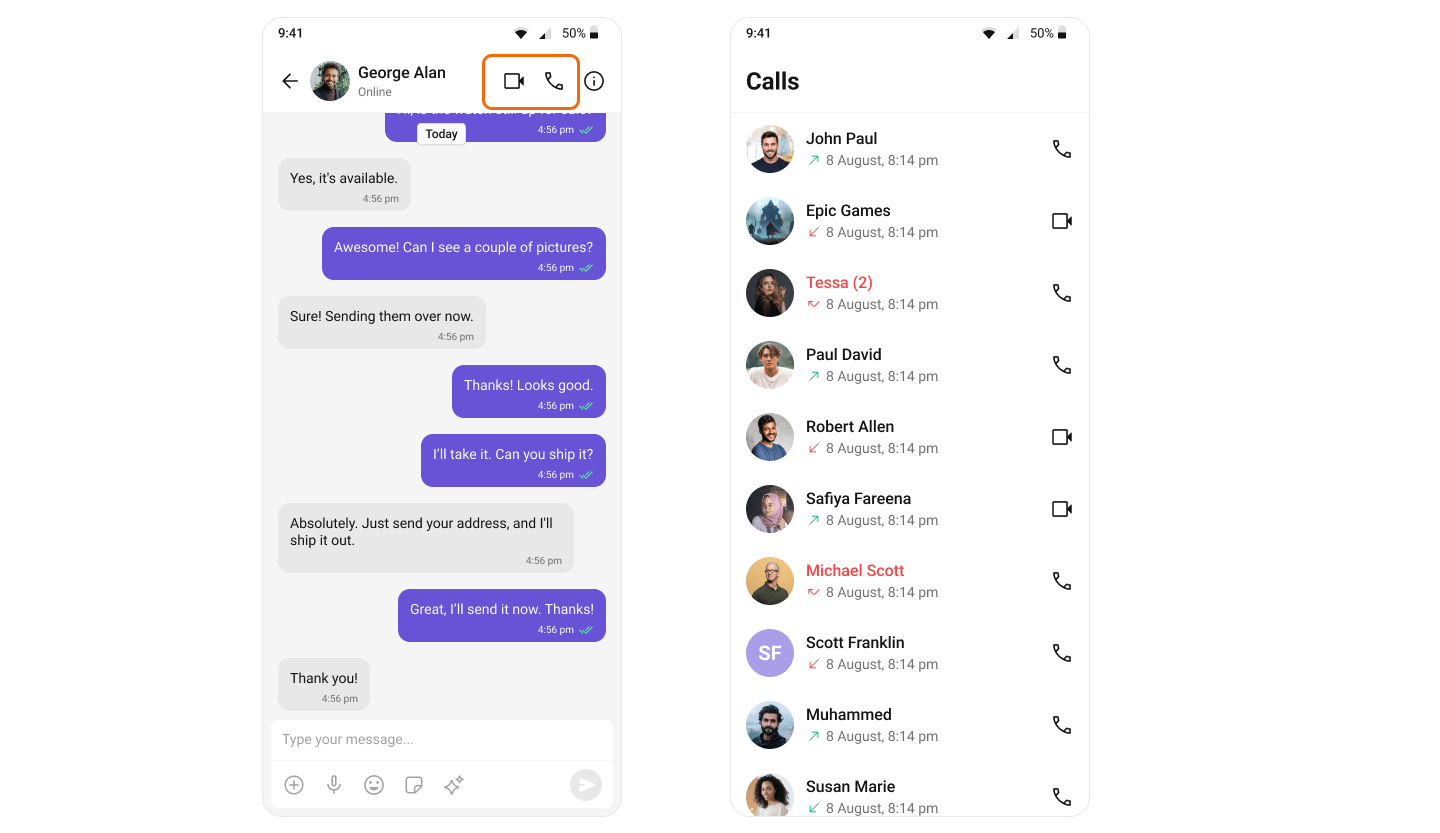
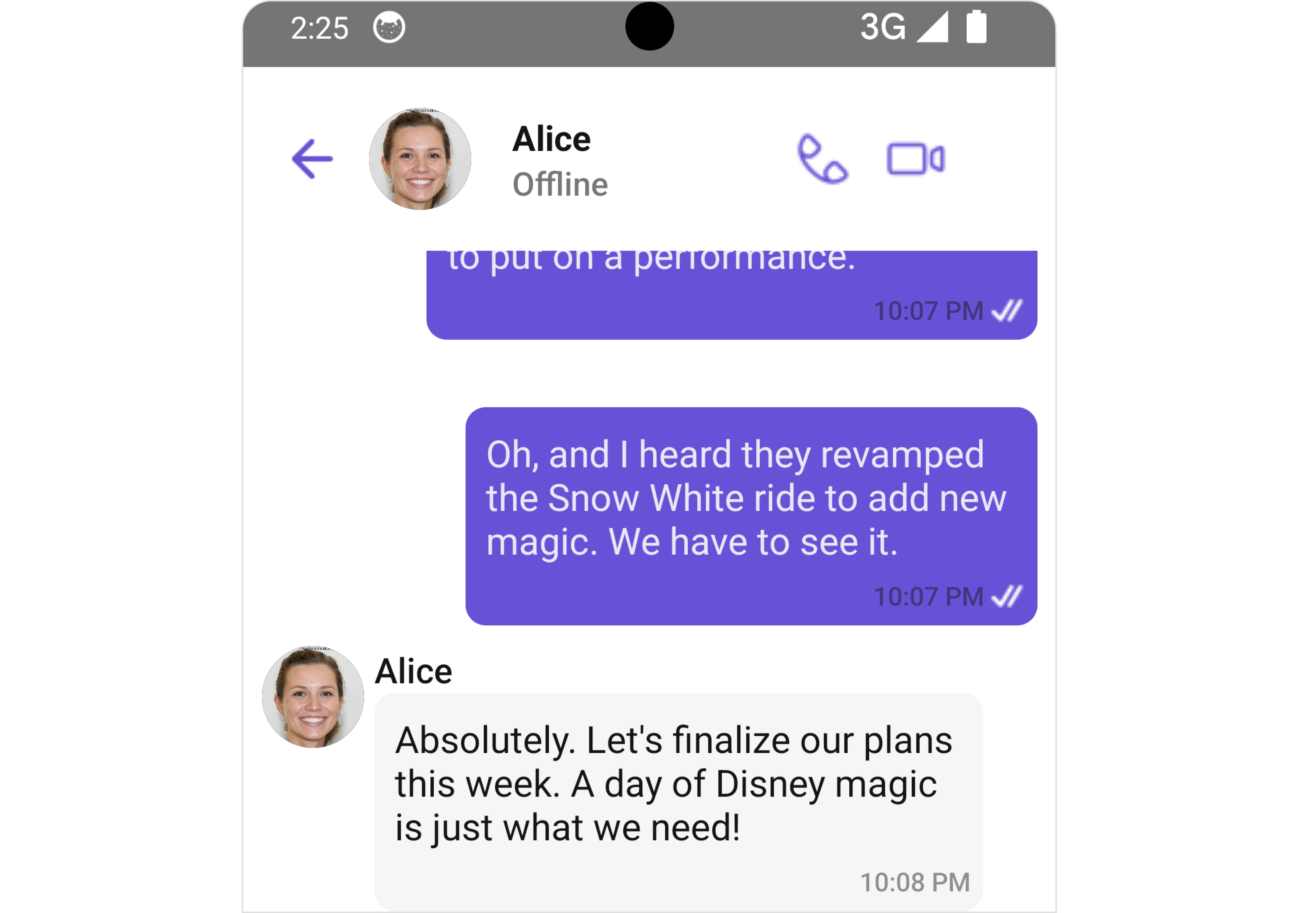
Once added, the React Native UI Kit will automatically detect it and enable calling features. The [CallButtons](/ui-kit/react-native/call-buttons) component will appear within the [MessageHeader](/ui-kit/react-native/message-header) component.
 ## Add Permissions
### Android
Add the following permissions to `android/app/src/main/AndroidManifest.xml`:
```xml theme={null}
```
### iOS
Add the following entries to `ios/{appname}/Info.plist`:
```xml theme={null}
NSCameraUsageDescription
Access camera
NSMicrophoneUsageDescription
Access Microphone
```
## Set Up Minimum Versions
### Android
In `android/app/build.gradle`, set the SDK versions:
```groovy theme={null}
android {
compileSdkVersion 33
defaultConfig {
minSdkVersion 24
targetSdkVersion 33
}
}
```
### iOS
In Xcode, set `IPHONEOS_DEPLOYMENT_TARGET` to 12.0, or add to your Podfile:
```ruby theme={null}
post_install do |installer|
installer.pods_project.targets.each do |target|
target.build_configurations.each do |build_configuration|
build_configuration.build_settings['IPHONEOS_DEPLOYMENT_TARGET'] = '12.0'
build_configuration.build_settings['EXCLUDED_ARCHS[sdk=iphonesimulator*]'] = 'arm64 i386'
build_configuration.build_settings['ENABLE_BITCODE'] = 'NO'
end
end
end
```
**Apple Silicon (M1/M2/M3) users:** Excluding `arm64` from the simulator build prevents the app from running natively on Apple Silicon Macs. If you are developing on an Apple Silicon Mac, consider excluding only `i386` instead of `arm64 i386` to enable native simulator builds.
## Set Up Call Listeners
Register a call listener to receive call events in your component:
```tsx theme={null}
import React, { useEffect, useRef, useState } from "react";
import { SafeAreaView } from "react-native";
import { CometChat } from "@cometchat/chat-sdk-react-native";
import { CometChatIncomingCall } from "@cometchat/chat-uikit-react-native";
const App = (): React.ReactElement => {
const [loggedIn, setLoggedIn] = useState(false);
const [callReceived, setCallReceived] = useState(false);
const incomingCall = useRef(null);
const listenerID = "UNIQUE_LISTENER_ID";
useEffect(() => {
CometChat.addCallListener(
listenerID,
new CometChat.CallListener({
onIncomingCallReceived: (call: CometChat.Call) => {
incomingCall.current = call;
setCallReceived(true);
},
onOutgoingCallRejected: () => {
incomingCall.current = null;
setCallReceived(false);
},
onIncomingCallCancelled: () => {
incomingCall.current = null;
setCallReceived(false);
},
})
);
return () => {
CometChat.removeCallListener(listenerID);
};
}, [loggedIn]);
return (
{loggedIn && callReceived && incomingCall.current ? (
{
incomingCall.current = null;
setCallReceived(false);
}}
/>
) : null}
);
};
```
## Add Permissions
### Android
Add the following permissions to `android/app/src/main/AndroidManifest.xml`:
```xml theme={null}
```
### iOS
Add the following entries to `ios/{appname}/Info.plist`:
```xml theme={null}
NSCameraUsageDescription
Access camera
NSMicrophoneUsageDescription
Access Microphone
```
## Set Up Minimum Versions
### Android
In `android/app/build.gradle`, set the SDK versions:
```groovy theme={null}
android {
compileSdkVersion 33
defaultConfig {
minSdkVersion 24
targetSdkVersion 33
}
}
```
### iOS
In Xcode, set `IPHONEOS_DEPLOYMENT_TARGET` to 12.0, or add to your Podfile:
```ruby theme={null}
post_install do |installer|
installer.pods_project.targets.each do |target|
target.build_configurations.each do |build_configuration|
build_configuration.build_settings['IPHONEOS_DEPLOYMENT_TARGET'] = '12.0'
build_configuration.build_settings['EXCLUDED_ARCHS[sdk=iphonesimulator*]'] = 'arm64 i386'
build_configuration.build_settings['ENABLE_BITCODE'] = 'NO'
end
end
end
```
**Apple Silicon (M1/M2/M3) users:** Excluding `arm64` from the simulator build prevents the app from running natively on Apple Silicon Macs. If you are developing on an Apple Silicon Mac, consider excluding only `i386` instead of `arm64 i386` to enable native simulator builds.
## Set Up Call Listeners
Register a call listener to receive call events in your component:
```tsx theme={null}
import React, { useEffect, useRef, useState } from "react";
import { SafeAreaView } from "react-native";
import { CometChat } from "@cometchat/chat-sdk-react-native";
import { CometChatIncomingCall } from "@cometchat/chat-uikit-react-native";
const App = (): React.ReactElement => {
const [loggedIn, setLoggedIn] = useState(false);
const [callReceived, setCallReceived] = useState(false);
const incomingCall = useRef(null);
const listenerID = "UNIQUE_LISTENER_ID";
useEffect(() => {
CometChat.addCallListener(
listenerID,
new CometChat.CallListener({
onIncomingCallReceived: (call: CometChat.Call) => {
incomingCall.current = call;
setCallReceived(true);
},
onOutgoingCallRejected: () => {
incomingCall.current = null;
setCallReceived(false);
},
onIncomingCallCancelled: () => {
incomingCall.current = null;
setCallReceived(false);
},
})
);
return () => {
CometChat.removeCallListener(listenerID);
};
}, [loggedIn]);
return (
{loggedIn && callReceived && incomingCall.current ? (
{
incomingCall.current = null;
setCallReceived(false);
}}
/>
) : null}
);
};
```